When it does not work
Find the code or message you see, and what to do.
A short page with a code on it
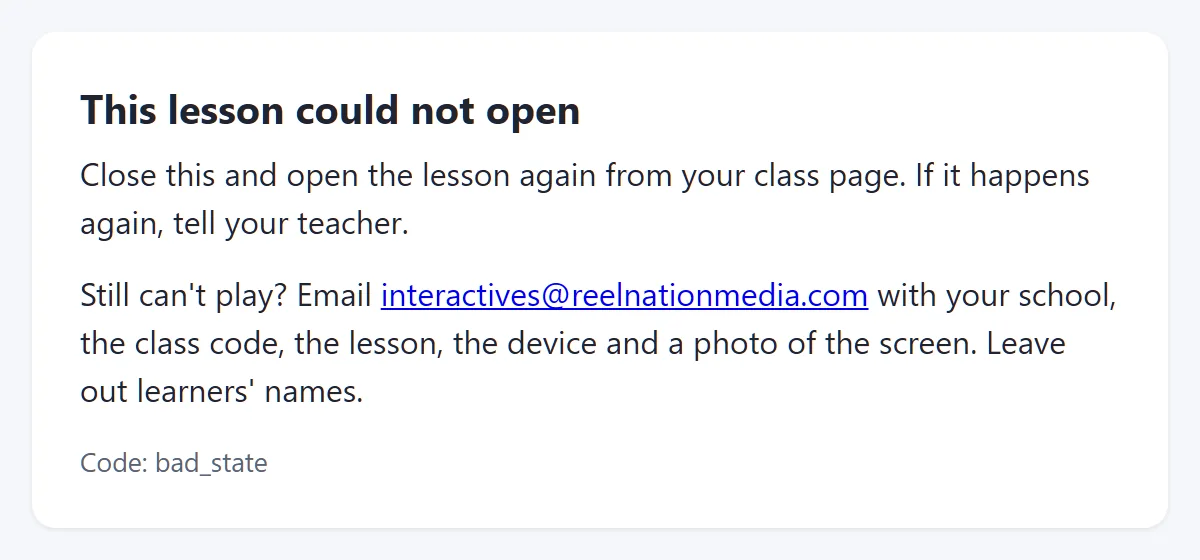
An interactive that cannot open shows This lesson could not open, with a Code: line at the bottom.
| Code | What it means | What to do |
|---|---|---|
bad_deployment | This install's Deployment ID is not in our studio. | Add the install with its own Deployment ID (Step 3). |
bad_id_token | Our server could not confirm the launch came from your Canvas. | Check Issuer, Client ID and Platform JWKS URL in our studio against Step 3. |
unknown_lesson | The link does not name one of our interactives. | Add interactives with the picker. For a hand-made link, check the interactive ID against the table. Remove Course Navigation and other placements that open the tool on its own. |
deep_linking_needs_a_teacher | A learner account opened the interactive picker. | Only teachers add interactives. Check the account's role in the course. |
deep_linking_type_not_accepted | The place the teacher started from does not accept a link. | Add interactives from an assignment, as in "Add one interactive to a course". |
bad_deep_linking_settings, bad_message_type or bad_version | Canvas sent a kind of message our server does not take. | Check the key is an LTI key and the placement's message type is LtiDeepLinkingRequest. If that is right, tell us the code. |
bad_state, missing_state or missing_id_token | The launch was cut off or took more than 10 minutes. | Open the interactive again from Canvas. If every launch shows it, check that Redirect URIs is exactly our launch address. |
bad_state_browser | The launch started in one browser window and finished in another. | Open the interactive again from Canvas, in one window. |
bad_nonce or replayed_nonce | The same launch arrived twice, for example after Back or Refresh. | Open the interactive again from Canvas. |
unknown_registration | The connection was removed from our studio while the launch was under way. | Connect Canvas again (Step 3). |
missing_sub | Canvas did not send its user number for this person. | Tell us, with the time it happened. |
no_licence | Your school has no licence with us, so our interactives do not open through Canvas. | Ask us about a licence. |
licence_ended | Your school's licence has ended. | Ask us to renew it. |
lesson_not_licensed | This interactive is not in your school's licence. A teacher sees it when opening the picker if the licence covers none of our interactives. | Ask us to add the interactive, or use one the licence covers. |
Other things you may see
| What you see | What it means | What to do |
|---|---|---|
A plain page showing {"error":"unknown_issuer"} | Canvas reached our login address, but no connection in our studio has that issuer and Client ID. | Check Issuer and Client ID in our studio. The issuer has no slash at the end. |
A plain page showing {"error":"missing_iss"} | Our login address was opened without Canvas's details. | Check that OpenID Connect Initiation Url holds our login address, and Redirect URIs and Target Link URI hold our launch address. |
A plain page showing {"error":"client_id_required"} | Your school has two connections with the same issuer and different Client IDs, and Canvas did not say which. | Tell us. |
| This link has been used or has expired: open the lesson again from your class page. | The one-time link inside the launch was already used, or more than 2 minutes passed. | Open the interactive again from Canvas. |
| Your result could not be saved. | The interactive finished, but our server refused the result. | Open the interactive again from Canvas and play again. If it happens again, tell us the time. |
| This school's licence has ended., or a line saying the interactive or the school has no licence | The licence was checked again when the interactive opened, when its result was saved, or when the picker sent its interactives back. | Ask us about your licence. |
| your school system takes one lesson at a time | The teacher picked several interactives where Canvas takes one. | Pick one interactive, then add the next one separately. |
| these lessons were already sent: open the picker again from your school system | The picker's answer already went back to Canvas. | Open the picker again from Canvas. |
| this school system is no longer connected | The connection was removed from our studio. | Connect Canvas again (Step 3). |
| A learner's result is in our studio's gradebook, but not in Canvas | Canvas refused the grade or was not asked. | Check that the two services in Step 1 are on, and the Token URL in Step 3. Then tell us when the learner finished: our server's log says why Canvas refused a grade (for example token_request_failed, no_access_token, lineitem_create_failed or score_post_failed). |
| A learner is missing from our studio's gradebook | They opened it with a role that is not "Student", so it was a preview. | Check their role in the Canvas course. |
To tell us about a problem, use our report page or write to interactives@reelnationmedia.com. Include the code and the time it happened. Never include a learner's name.
Other setup guides: Add our interactives to Schoology · Add our interactives to Moodle · Host our interactives on your school's website. Back to help for schools.