Host our interactives on your school's website
Three steps. Watch it once, then do it.
It is for a school that can put files on its own website. On Google Sites, Squarespace or Wix, or with no web host? You don't need it: share an interactive with a class link or with Google Classroom instead. There is nothing to host, and scores show in our gradebook. See Put an interactive link in your school system or Google Classroom.
Quick setup
-
Download and upload
Sign in to our studio and open Downloads. Choose Download beside an interactive and unzip it into a folder of the same name. Upload that folder to your school's website.
You only see the interactives your licence covers. When we add one to your licence, it appears here by itself.
-
Open it once. We find it
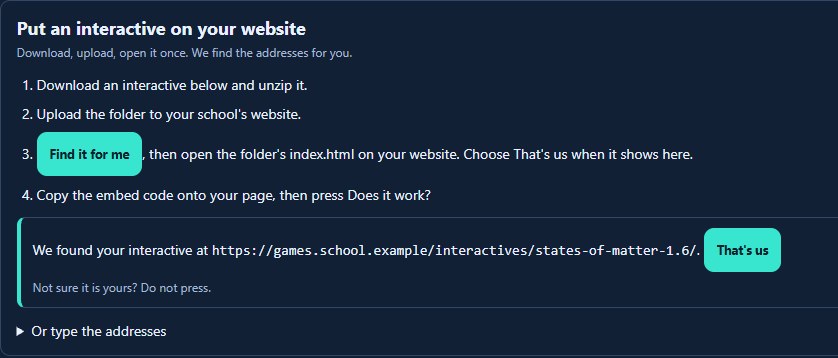
In Downloads, choose Find it for me. Then, within 15 minutes, open the folder's
index.htmlon your website, for examplehttps://games.school.example/interactives/states-of-matter-1.6/index.html.The studio shows We found your interactive at your folder. Choose That's us. You never type an address. Not sure it is yours? Do not press.
-
Paste it on your page
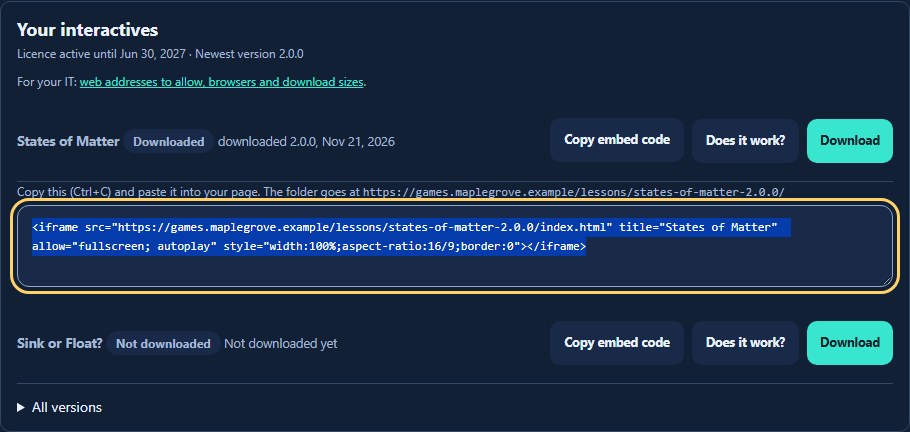
Choose Copy embed code beside the interactive and paste it into your page. Open the page once: the studio then asks Send its results there? Choose That's us.
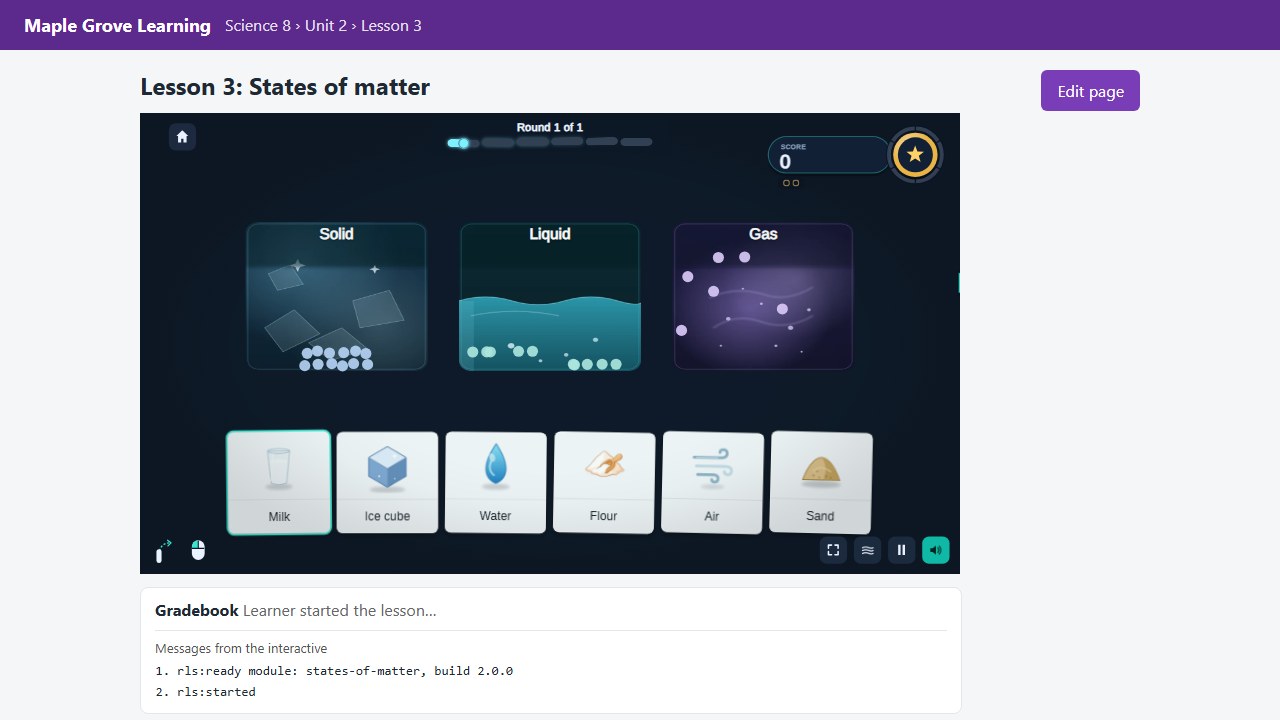
To check, choose Does it work?. The interactive tells your page when it is ready, when a learner starts, and the result: see How results come back.
Rather type the addresses? In Downloads, open Or type the addresses, fill in Page address and Where will the files live?, then choose Save. It works the same.
We approve your web address, usually within a working day. Until then, the interactive plays as it came; after that, it also gets your teachers' edits from our studio.
A different website builder, more than one site, or something not working? The detailed guide covers each case.
The detailed guide
This guide is for your web team. Each interactive is one folder: download it from our studio, copy it to your web server and show it in one of your pages, under your header, with no sign-in for learners. It needs no server code, database or learner accounts. Plan on about 30 minutes for the first interactive and 10 for each one after.
- Set it up onceWe find your addresses; you choose what learners see
- DownloadOne zip file per interactive
- Copy itThe folder goes on your web server
- Check itOne page says the files are intact
- Show itOne frame in your page, results to you
The pictures are real screens from a test copy of our studio.
These steps come from our server's code and each folder's HOSTING.txt and UPDATE.txt, and our
tests keep this guide matching the studio.
We can't see your web server or interactive pages. Boxes headed Check on your server mark those steps. Notes on other companies' website builders and hosts come from their help pages, linked beside each; we have not tested them all.
Want grades to reach a Canvas, Schoology or Moodle gradebook by themselves? Use that system's guide instead: Canvas, Schoology, Moodle.
Before you start
What you need
- An active licence with us that lists the interactives you will host.
- A studio sign-in as an Owner or Web team. Your Owner adds web team people on the Teachers tab: under Add a teacher, choose the role Web team (downloads only), then Add to team. A web team sign-in opens the download page and nothing about learners.
- A web server that serves files over HTTPS. No server of your own? See Where the folder can live.
- The page where learners will play the interactive (your "interactive page"), and its exact web address.
What to ask us for
- Your licence and its interactives. Only we can set or change these. Your Owner sees them on the Teachers tab, under Your licence.
- Approving the web address your folders are served from. You don't send it: when you save Where will the files live? in Step 1, we get a note and approve it, usually within a working day. Your Owner sees approved addresses under Your licence, as Web addresses. Until then, an interactive served from it plays as stored in its folder, without your teachers' edits from our studio.
Interactives we made for your school
An interactive we build only for your school is hosted the same way. Once your licence lists it, it appears under Your interactives with its own Download button. Our public pages never list it.
Set your package settings
Save your package settings once, then download each interactive as a zip file.
- Sign in to our studio.
- Open the Downloads tab.
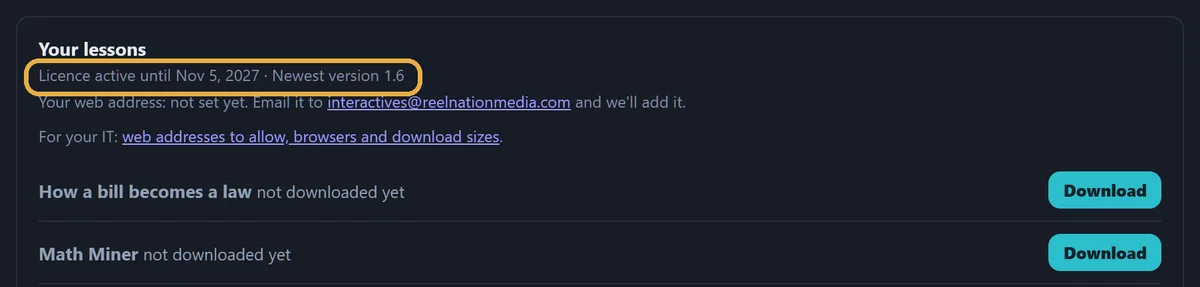
- Under Your interactives, check the line says Licence active.
- Under Put an interactive on your website, choose Find it for me. Within 15
minutes, open one interactive's
index.htmlon your website (see Download and Copy it). The studio shows the folder it found and, once your page has played it, the page. Choose That's us beside each one that is yours. We approve the folder's address, usually within a working day; until then your interactives still play the interactive inside each folder. - Or open Or type the addresses. In Page address, paste a link to the page where learners play. The studio keeps only
the site part, for example
https://lms.school.example. For more than one site, put a comma between (10 at most). In Where will the files live?, type the folder, for examplehttps://games.school.example/interactives, and choose Save. - For Captions, choose Learner's choice or On from the start.
- If learners share computers, tick Shared computers: start fresh each visit.
- Untick any part of the game you want hidden: Score, Results pages, Stickers, High scores or Quick checks.
- Choose Save settings.
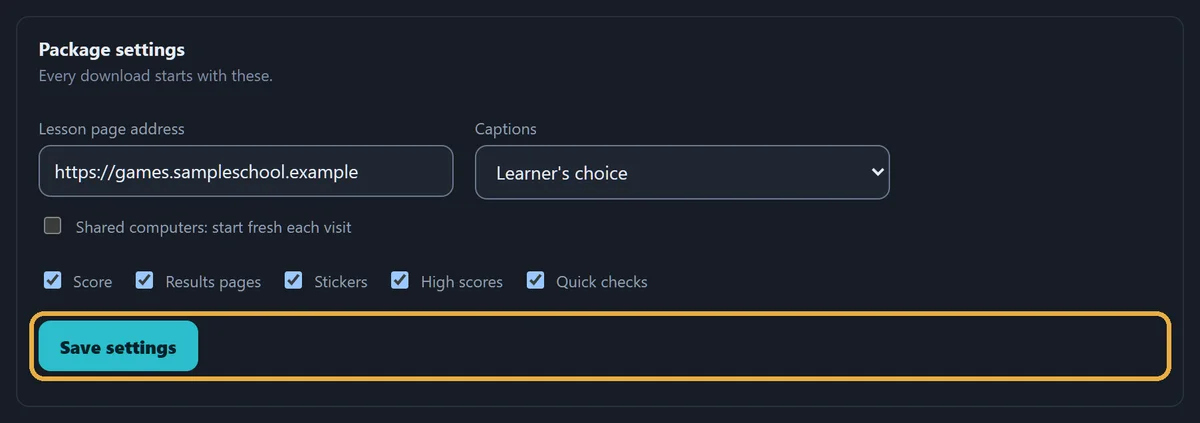
The page says Saved. Your next downloads start with these.
Couldn't save them — not an exact web address (https://host, no path): … names the wrong
address. Paste an address that starts with https://, and never *.
A folder you already downloaded keeps its old settings. To change them, download the interactive again, or edit its
package-config.js as its HOSTING.txt explains.
Download an interactive
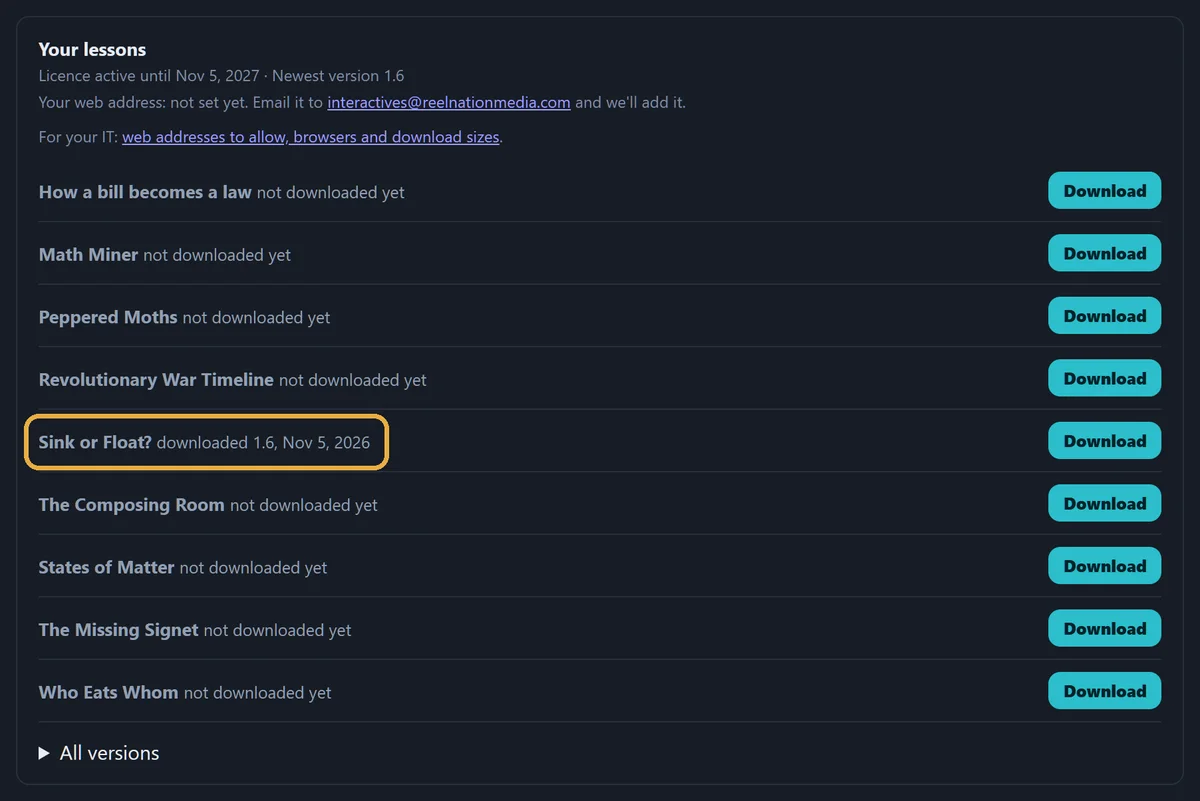
- Under Your interactives, find the interactive.
- Choose Download.
The page says Preparing the download..., then your browser saves a file named with the interactive ID and
version, for example states-of-matter-1.6.zip. We log each download: the interactive, the version, who, and
when.
- The interactive shows Not ready. We are updating it. Back soon. instead of a Download button, or the page says Couldn't download it — this lesson's package is being updated; try again in a few minutes. We are releasing a new version. Try again in a few minutes.
- Couldn't download it — this school's licence has ended. Ask us about your licence.
- Couldn't download it — this lesson is not in this school's licence. Ask us to add the interactive.
Put the folder on your web server
Unzip the interactive into its own folder and copy it to a web server that serves HTTPS.
- Make a new, empty folder named like the file without
.zip, for examplestates-of-matter-1.6. Keep that name: it carries the interactive and version. - Unzip the file into that folder. You should see
index.html,package-config.js,HOSTING.txt,check.htmland the folderassets. - Copy the whole folder, unchanged, to your web server. The game then has an address such as
https://games.school.example/rls/states-of-matter-1.6/index.html. - If the folder's web address is not on your list with us yet, send it now (see What to ask us for).
You don't need to edit package-config.js. It already holds your school, our server's address and your package
settings.
- states-of-matter-1.6/
- index.html the game: point your frame here
- package-config.js your school and your settings
- check.html for you: are the files intact?
- test-host.html for you: the link test page
- rls-messages.schema.json what the game sends
- HOSTING.txt, UPDATE.txt these steps, in the folder
- manifest.json, NOTICES.txt, does-it-work.html, rls-check.js
- assets/ the game, its pictures and sound
- samples/ web.config, .htaccess, nginx.conf server settings
- brand/ logo.png only when you have set a logo
- The files must come from a web server over HTTPS. Opening
index.htmlstraight from a disk does not work. - On IIS, copy
samples/web.configinto the folder, next toindex.html. IIS needs it: it refuses to send file types it does not know. - On Apache or nginx, the samples (
.htaccess,nginx.conf) only make the game load faster. It works without them. - Check each sample against your server's own documentation before you use it.
Where the folder can live
The game unpacks its own files, so any host that serves plain files over HTTPS can run it. For your teachers' edits, use an address
on your school's own domain: a host's free address (such as yourschool.netlify.app) is shared by many sites, so we can't approve it. One interactive folder is 6 to 29 MB. Its largest file is about 2 MB.
| Host | Works? | Watch for |
|---|---|---|
| Your own web server (IIS, Apache, nginx) | Yes | On IIS, add samples/web.config. Use the sample for your server to load faster. |
| Amazon S3 with CloudFront | Yes | For your teachers' edits, use your own domain: we can't approve its shared cloudfront.net address. S3 alone has no HTTPS for websites; put CloudFront in front of it. Amazon's page |
| Azure Static Web Apps | Yes | For your teachers' edits, use your own domain: we can't approve its shared azurestaticapps.net address. The free plan holds 250 MB per site: three to six interactives. Microsoft's page |
| Netlify | Yes | For your teachers' edits, use your own domain: we can't approve its shared netlify.app address. Its own compression settings cannot be changed, so interactives load a little slower. Netlify's page |
| GitHub Pages | Yes | For your teachers' edits, use your own domain: we can't approve its shared github.io address. No server settings at all; interactives load a little slower. Read GitHub's limits on use first. GitHub's page |
| Cloudflare Pages | Yes | For your teachers' edits, use your own domain: we can't approve its shared pages.dev address. Refuses any file over 25 MiB (about 26 MB). An interactive's largest file is about 3 MB. Cloudflare's page |
| Google Sites, Squarespace or Wix | No | They can't hold a folder of files. They can show an interactive whose folder lives on another host, or use a class link instead. |
| Google Drive | No | Google turned off web hosting from Drive in 2016. Google's note |
| OneDrive or a SharePoint library | No | Neither serves a folder as a website. SharePoint's "HTML pages" are capped at 10 MB and block what the game needs. Microsoft's page |
Check the folder
Check the files arrived intact, then test that your interactive page gets the game's messages.
- Open
check.htmlin the folder on your web server, for examplehttps://games.school.example/rls/states-of-matter-1.6/check.html.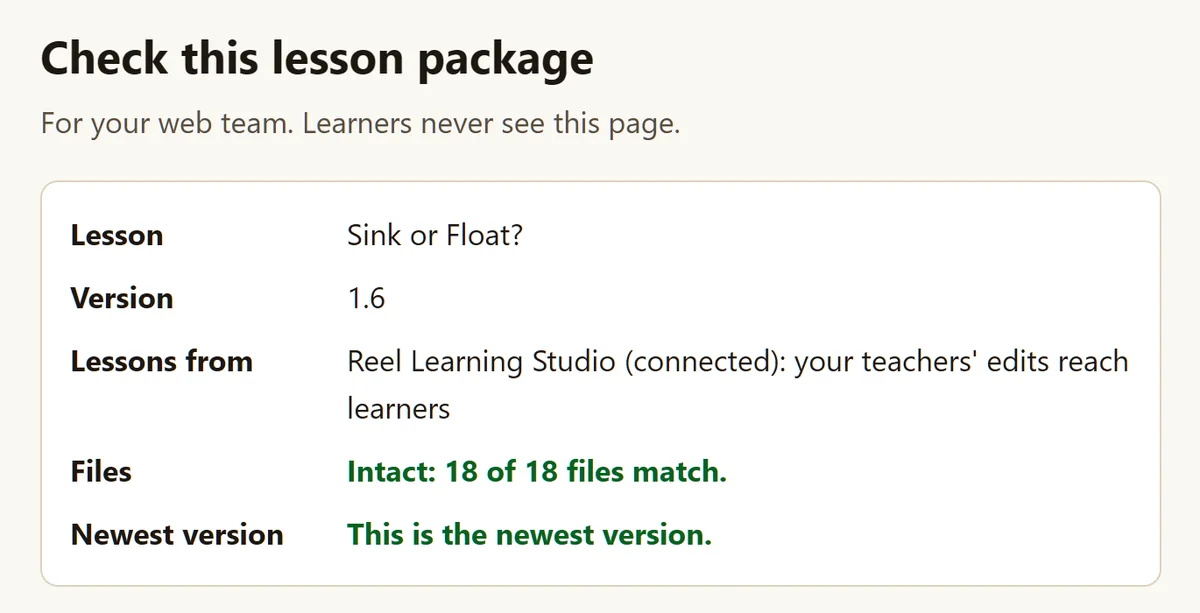
The page, Check this interactive, shows the version, says Intact for the files, and shows whether a newer version is ready. Learners never see it.
- Not intact, with a list of Missing or Changed files: a file was lost or changed on the way. Copy the folder again from the zip file.
- Files can be checked only over https. Open the page from its https address.
Test the link to your interactive page
This takes about five minutes. Run the test page on your interactive page's site: that is the page the game talks to.
- If your interactive page and the folder are on the same site, open
test-host.htmlin the folder. - If they are on different sites, copy
test-host.htmlandrls-messages.schema.jsonfrom the folder to your interactive page's site. - Open that copy with the game's address after
?src=, for example: https://lms.school.example/tools/test-host.html?src=https://games.school.example/rls/states-of-matter-1.6/index.html - Play the interactive once, to the end.

The test page lists what the game sends, each line with a tick and the word valid read out to screen readers: Ready, Started, then a line such as Result: 85%, passed.
- Nothing arrives, and after about 90 seconds the page says No message from the game yet. The test page's own address is missing from Page address. Add it, save, and download the interactive again.
- A line with a cross, read out as not valid: a message did not match the published format. Tell us, with the line.
Add one interactive to a page
Show an interactive on one of your pages with one frame.
- Open your interactive page for editing.
- Add this frame, with the address of your folder's
index.htmland the interactive's name intitle: <iframe src="https://games.school.example/rls/states-of-matter-1.6/index.html" title="States of Matter" allow="fullscreen; autoplay" style="width:100%;aspect-ratio:16/9;border:0"></iframe> - Save the page.
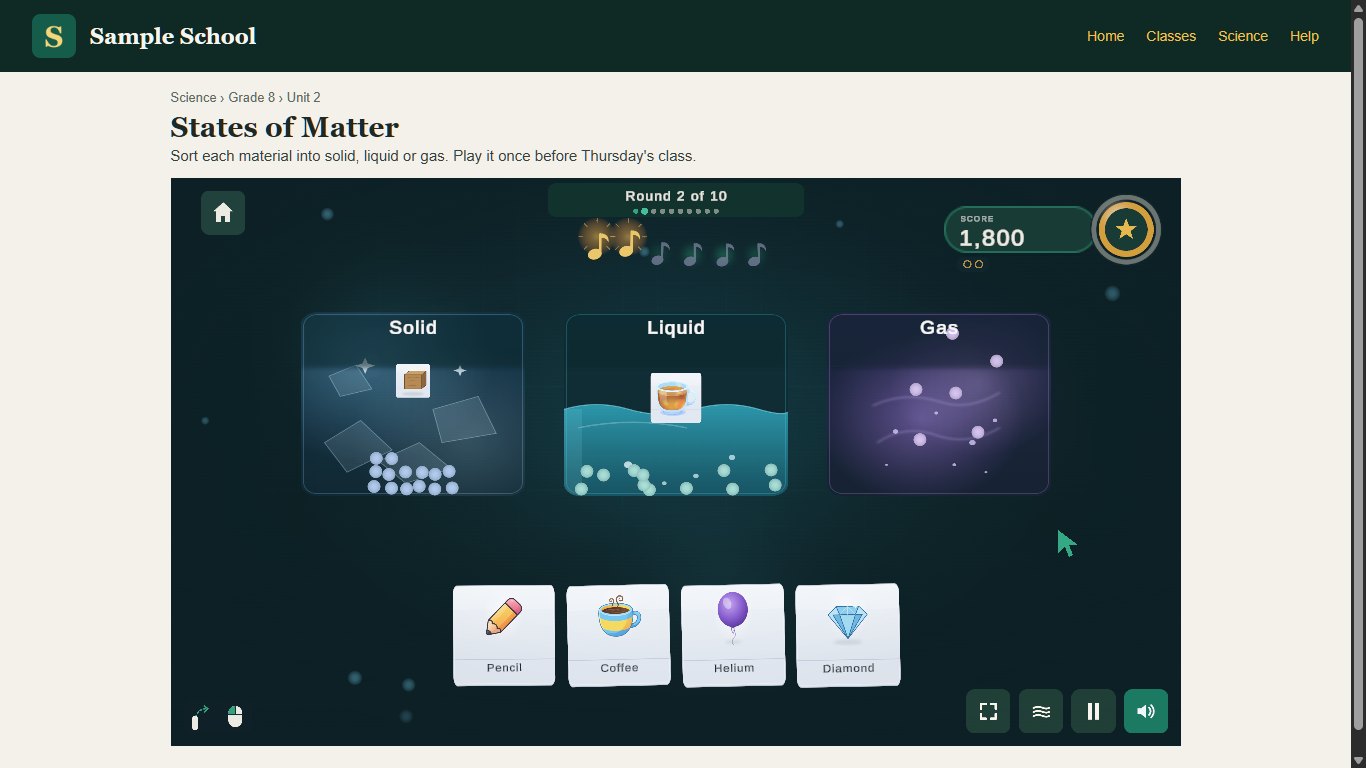
- Open the page as a learner would, and play the interactive once.
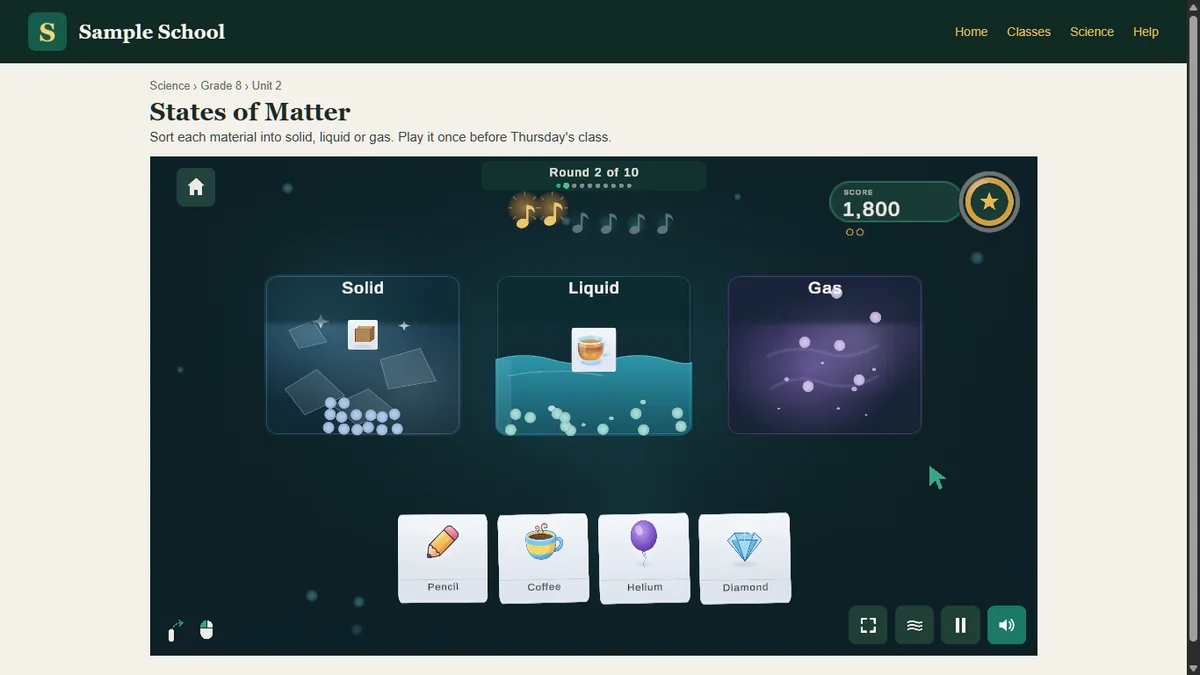
Make your frame
Your server's address, then the folder, then index.html.
Screen readers read it out.
- How you add a frame depends on your site or school system. Some editors remove frames unless an admin allows them.
- If the game and the interactive page are on different sites, the game's server must not send its files with the header
X-Frame-Options: DENY.
One folder is one interactive. For each other interactive, repeat the download, folder and check steps, then add its own frame.
Your website builder, one by one
Every builder below can show the interactive. Results reach you only if you can add your own script to the same page. If the builder puts the frame inside a frame of its own, or allows no script, the interactive plays and learners see their score, but your page never receives it.
| Builder | Where the frame goes | Results reach your page? | Watch for |
|---|---|---|---|
| WordPress | Add a Custom HTML block, choose Edit HTML, paste, Update. | Yes, with a listener in the same block | Only Administrators and Editors can save a frame; on a network of sites, only the Super Admin. Others' frames are removed on save without a warning. WordPress's page |
| WordPress.com | The same Custom HTML block. | Yes, on a paid plan | Frames need a paid plan with hosting features turned on. WordPress.com's page |
| Squarespace | Add block, Code, mode HTML, paste. | Likely, with a listener in the same block | Needs the Core, Plus or Advanced plan. Code blocks do not run while you are signed in: check the page signed out. Squarespace's page |
| Google Sites | Insert, Embed, Embed code, paste, Insert, then Publish. | No | Google puts the frame inside a frame of its own, and a Sites page takes no script. Google's page |
| SharePoint | Edit the page, add the Embed web part, paste into Website address or embed code. | No | A site collection admin must first allow your game's address under HTML Field Security. No script is allowed. Microsoft's page |
| Wix | Add Elements, Embed Code, Embed a site, paste the folder's address. | No | Wix shows embeds inside a frame of its own. Wix's page |
| Finalsite | Turn on Compose, Add Element, Embed, paste in its settings. | Ask Finalsite | Its rules for scripts are not in its public help. Finalsite's page |
| Edlio | In a content block, open the source code window, paste, Save. | No | That window does not accept script. Edlio's page |
| Canvas, Schoology, Moodle pages | The page editor's HTML view. | No, use our guide | For grades in those gradebooks, add our interactives the school-system way instead: Canvas, Schoology, Moodle. |
| Google Classroom | No frames: add a Link to your interactive page instead. | From your interactive page | Link to the page that holds the frame, not to the folder. Google's page |
Menus change: if yours looks different, trust the builder's help page, linked in each row.
How results come back
Keep each learner's result from your interactive page, and see what the game never sends.
- When a learner finishes, the game sends the result to your interactive page, and only to the pages in Page address. It never sends results to us, and our studio's gradebook does not show package plays.
- To keep results, your interactive page listens for the game's message and passes it to your gradebook. A listener looks like this (put your game's site in place of the address):
window.addEventListener("message", function (e) {
  if (e.origin !== "https://games.school.example") return;
  var m = e.data;
  if (!m || m.v !== 1 || typeof m.type !== "string") return;
  if (m.type === "rls:result") {
    // m.result.masteryPercent, m.result.passed, m.result.itemsTotal ...: hand them to your gradebook.
  }
});
- The score is
m.result.masteryPercent, from 0 to 100: the items right the first time out of all the items.m.result.passedis true at 70 or more. Every message's full format is inrls-messages.schema.jsonin the folder. - Accept messages only from your game's own site, as the first line of the listener does. If your page has more than one frame,
also check the message came from this one:
e.source === frame.contentWindow, whereframeis the interactive's iframe. - Results come from the learner's browser, so someone with the page open could change them. Use them for practice and progress, not for exam grades.
The messages, in detail
rls:readycomes each time the interactive opens,rls:startedwhen a learner starts, andrls:resultwhen they finish.- A learner who reached fewer than half the items gets no result: you see
rls:startedand norls:result. Match a result to its start bym.run. - A page that starts listening late can send
{"type":"rls:hello","v":1}to the frame from an address in Page address. The interactive then sendsrls:readyagain. - No
rls:readywithin 90 seconds means the interactive did not load. Check the folder withcheck.html. - We sometimes add a field to a message without changing
v, as we did withcheckandreplayOf. Ignore fields you don't know.
Your school's name, logo and colours
Your Owner can put your school's name, logo and colours into every interactive you download.
- Sign in as the Owner.
- Open the Branding tab.

- Under Name and logo, type your school's name.
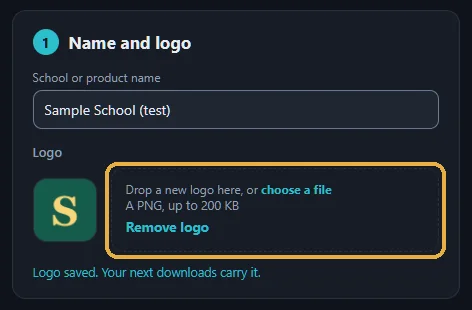
- Drop your logo on the box, or choose a file: a PNG, up to 200 KB. It saves at once, and the tab
says Logo saved. Your next downloads carry it.
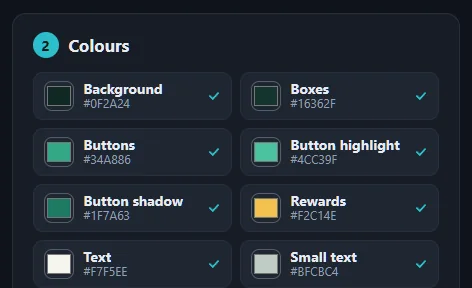
- Under Colours, choose your colours. Each gets a tick, or a cross naming what is hard to read:
Colours that are hard to read can't be saved. The live preview shows what learners will see.
- Choose Save.
- Download your interactives again. Folders you downloaded before keep their old look.
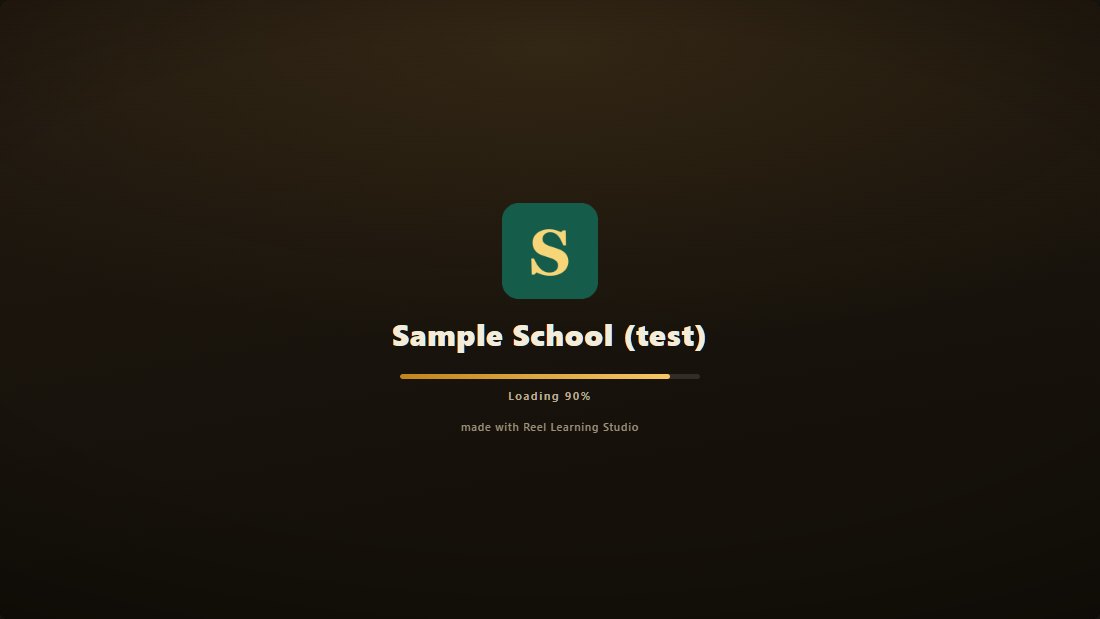
The next folder you download holds the logo in brand/logo.png, and the interactive opens with your name and logo
while it loads.
No names
- The game never asks for a name. Its messages carry no names and no learner, class or device numbers.
- A package asks us for one thing: its interactive, once per visit. That request names your school, the interactive and the game's version, and nothing about the learner. We note which version each interactive last ran at each of your web addresses, so your download page can show it.
- Progress is saved only in that device's browser. Shared computers: start fresh each visit clears it every visit. Safari may clear a framed game's saved progress after 7 days.
- There is nothing to turn off.
Updating to a new version
See when an interactive has a new version, and swap in the new folder with a way back.
How you hear about it
- The Downloads tab's name counts interactives with a newer version, for example Downloads (2 new). Each of those interactives shows New: and the new version.
- When a release has notes, each interactive shows What's new in that version, ending with
Do I need to do anything? and the answer. All versions lists every
version's notes, newest first.
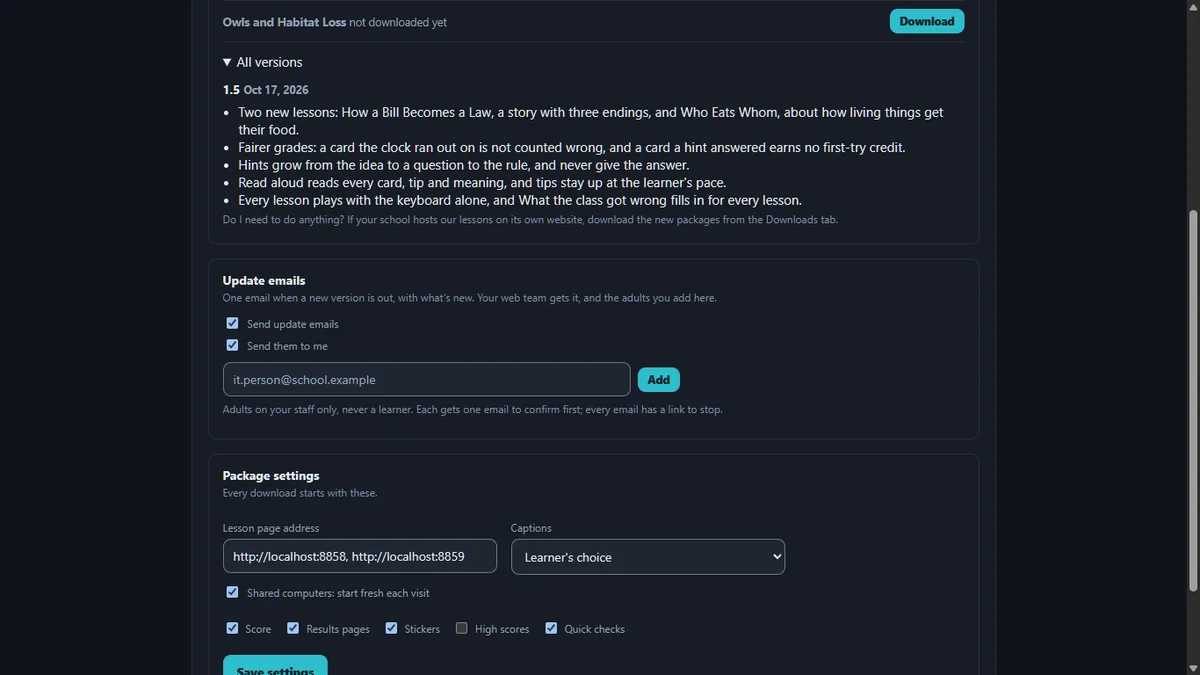
- The Update emails box on the same tab emails your web team, and any adults you add there, when a new version is out, with what's new.

Choose who gets the update emails
- On the Downloads tab, find the box Update emails.
- To stop the emails for the whole school, untick Send update emails.
- With a Web team sign-in, untick Send them to me to stop your own copy only.
- To add another adult on your staff, such as an IT person or a principal, type their email address.
- Choose Add. You can add up to 10. Never add a learner.
The page says We emailed the address to confirm. The address shows as Waiting for them to confirm until that person confirms from the email, then as Confirmed. They get nothing else from us before they confirm, and every email has a link to stop.
If nobody gets our emails, tell us. The Downloads tab always shows a newer version, email or not.
Update one interactive
These steps are also under How to update, at the bottom of the Downloads tab,
and in each folder's UPDATE.txt:
- Download the interactive again. The new file carries the new version in its name.
- Unzip it into a new folder named like the new file, next to the old one. Don't copy it over the old folder: that is your way back.
- Open the new folder's
check.html. It should say Intact. - Play the interactive once from the new folder.
- Point the interactive page's frame at the new folder. Learners get the new version at their next visit.
- Keep the old folder for a week. To undo the update, point the frame back at it.
An update never touches your teachers' edited interactives, the results your interactive page received, or anything on your systems.
When it does not work
Find what you see in the table, then do what it says.
| What you see | What it means | What to do |
|---|---|---|
| There is no Downloads tab | Your sign-in is not an Owner or Web team sign-in, or your school has no licence with us yet. | Ask your school's Owner for a Web team sign-in. If you are the Owner, ask us about a licence. |
| No licence, Licence ended or No interactives in your licence yet. | Your licence is not set up, has ended, or lists no interactives. | Ask us. |
| Not ready. We are updating it. Back soon. next to an interactive | We are releasing a new version. | Try again in a few minutes. |
| The game page stays blank, or files fail to load | The folder is opened from a disk, a file is missing, or the server refuses some file types. | Open it from your web server over HTTPS. Run check.html. On IIS, add samples/web.config. |
| The interactive page shows an empty or refused frame | The game's server does not let your interactive page show it. | Remove X-Frame-Options: DENY from the game's files. |
| The frame was there before you saved, and is gone after | Your website builder removed it: your role may not add frames. | See Your website builder, one by one, or ask your site's admin to add it. |
| Your interactive page receives no results | The interactive page's address is not in Page address, or the listener checks a different site. | Run the link test. Add the address to Page address, then download again. |
| Results never arrive on Google Sites, Wix, SharePoint or Edlio | Those builders put the frame inside a frame of their own, or allow no script. | Show the interactive on a page where you can add a script. |
| Learners see the interactive as it came, not your teachers' edits | The folder's web address is not on your school's list with us, or your licence has ended. The game then plays the interactive stored in its folder. | Ask us to add the address. Your Owner can check the list under Your licence. |
| The game loads slowly | Your server does not send the faster headers. | Use the matching sample in the samples folder. |
Tell us about a problem on our report page, or write to us at interactives@reelnationmedia.com. Include the interactive, the version and when it happened. Never include a learner's name.
Other setup guides: Add our interactives to Canvas · Add our interactives to Schoology · Add our interactives to Moodle. Back to help for schools.