Before you start
This guide is for your web team. Each interactive is one folder: download it from our studio, copy it to your web server and show it in one of your pages, under your header, with no sign-in for learners. It needs no server code, database or learner accounts. Plan on about 30 minutes for the first interactive and 10 for each one after.
- Set it up onceWe find your addresses; you choose what learners see
- DownloadOne zip file per interactive
- Copy itThe folder goes on your web server
- Check itOne page says the files are intact
- Show itOne frame in your page, results to you
The pictures are real screens from a test copy of our studio.
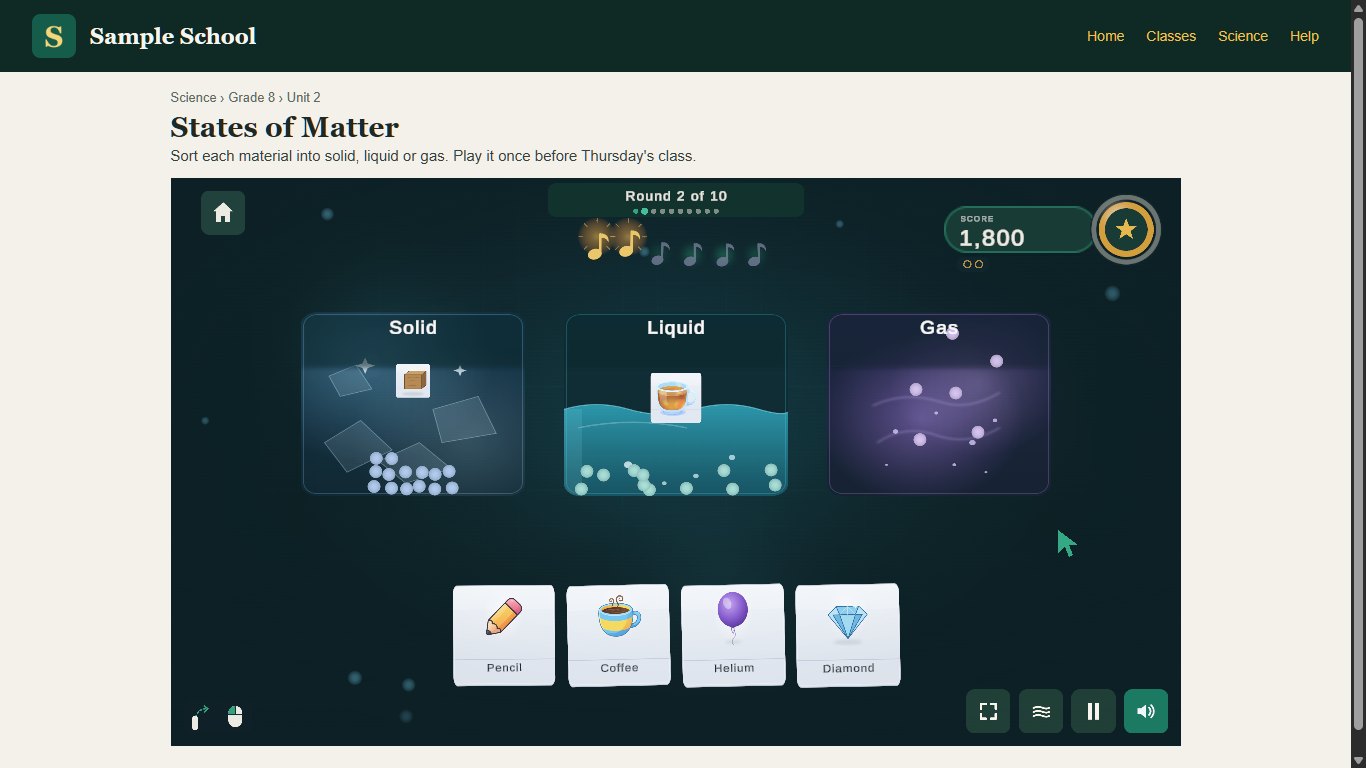
These steps come from our server's code and each folder's HOSTING.txt and UPDATE.txt, and our
tests keep this guide matching the studio.
We can't see your web server or interactive pages. Boxes headed Check on your server mark those steps. Notes on other companies' website builders and hosts come from their help pages, linked beside each; we have not tested them all.
Want grades to reach a Canvas, Schoology or Moodle gradebook by themselves? Use that system's guide instead: Canvas, Schoology, Moodle.
What you need
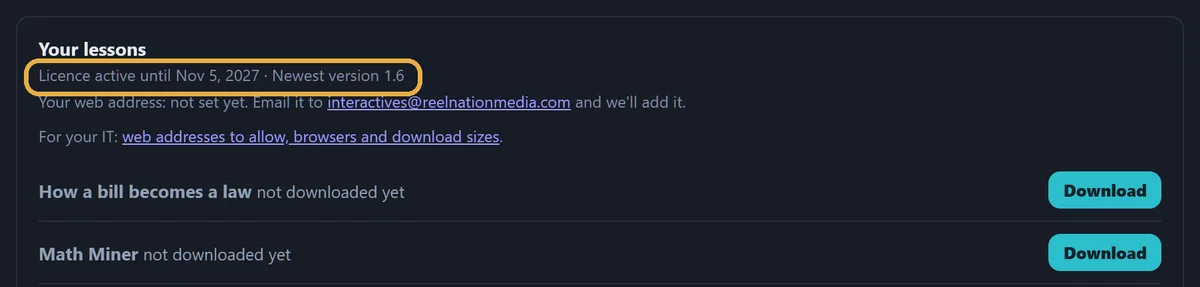
- An active licence with us that lists the interactives you will host.
- A studio sign-in as an Owner or Web team. Your Owner adds web team people on the Teachers tab: under Add a teacher, choose the role Web team (downloads only), then Add to team. A web team sign-in opens the download page and nothing about learners.
- A web server that serves files over HTTPS. No server of your own? See Where the folder can live.
- The page where learners will play the interactive (your "interactive page"), and its exact web address.
What to ask us for
- Your licence and its interactives. Only we can set or change these. Your Owner sees them on the Teachers tab, under Your licence.
- Approving the web address your folders are served from. You don't send it: when you save Where will the files live? in Step 1, we get a note and approve it, usually within a working day. Your Owner sees approved addresses under Your licence, as Web addresses. Until then, an interactive served from it plays as stored in its folder, without your teachers' edits from our studio.
Interactives we made for your school
An interactive we build only for your school is hosted the same way. Once your licence lists it, it appears under Your interactives with its own Download button. Our public pages never list it.
Next: Set up and download