Update to a new version
See when an interactive has a new version, and swap in the new folder with a way back.
How you hear about it
- The Downloads tab's name counts interactives with a newer version, for example Downloads (2 new). Each of those interactives shows New: and the new version.
- When a release has notes, each interactive shows What's new in that version, ending with
Do I need to do anything? and the answer. All versions lists every
version's notes, newest first.
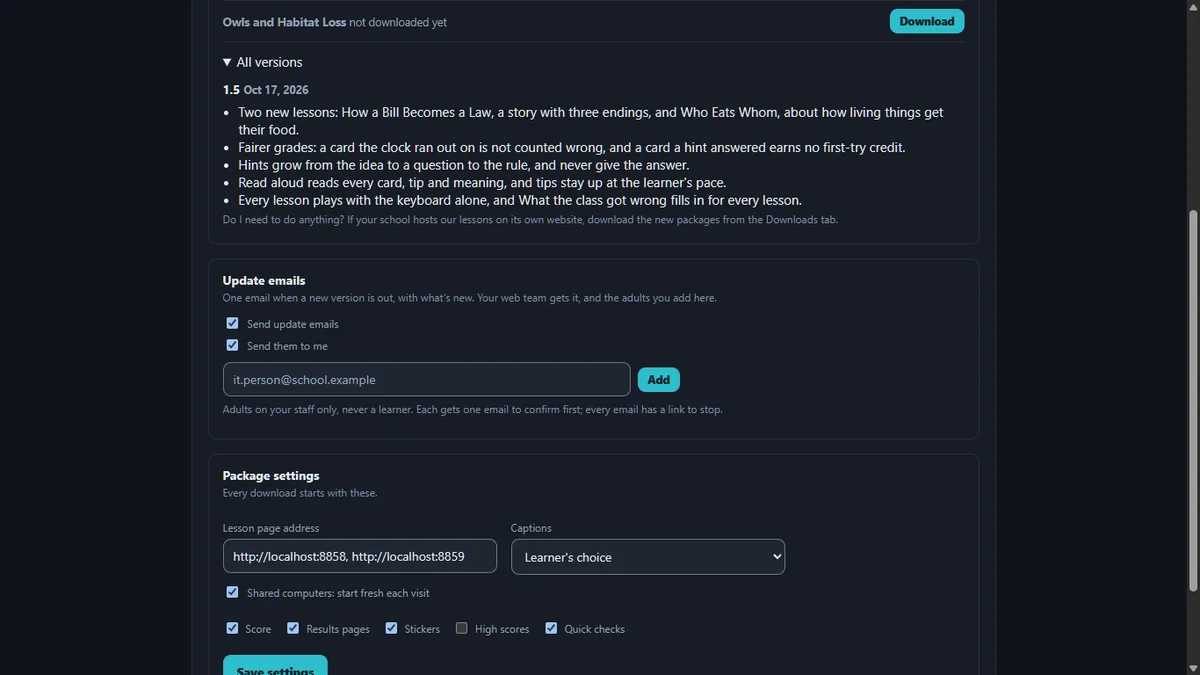
- The Update emails box on the same tab emails your web team, and any adults you add there, when a new version is out, with what's new.

Choose who gets the update emails
- On the Downloads tab, find the box Update emails.
- To stop the emails for the whole school, untick Send update emails.
- With a Web team sign-in, untick Send them to me to stop your own copy only.
- To add another adult on your staff, such as an IT person or a principal, type their email address.
- Choose Add. You can add up to 10. Never add a learner.
When it works:
The page says We emailed the address to confirm. The address shows as Waiting for them to confirm until that person confirms from the email, then as Confirmed. They get nothing else from us before they confirm, and every email has a link to stop.
If nobody gets the emails
If nobody gets our emails, tell us. The Downloads tab always shows a newer version, email or not.
Update one interactive
These steps are also under How to update, at the bottom of the Downloads tab,
and in each folder's UPDATE.txt:
- Download the interactive again. The new file carries the new version in its name.
- Unzip it into a new folder named like the new file, next to the old one. Don't copy it over the old folder: that is your way back.
- Open the new folder's
check.html. It should say Intact. - Play the interactive once from the new folder.
- Point the interactive page's frame at the new folder. Learners get the new version at their next visit.
- Keep the old folder for a week. To undo the update, point the frame back at it.
An update never touches your teachers' edited interactives, the results your interactive page received, or anything on your systems.
Next: When it does not work