Your Owner can put your school's name, logo and colours into every interactive you download.
Sign in as the Owner.
Open the Branding tab.
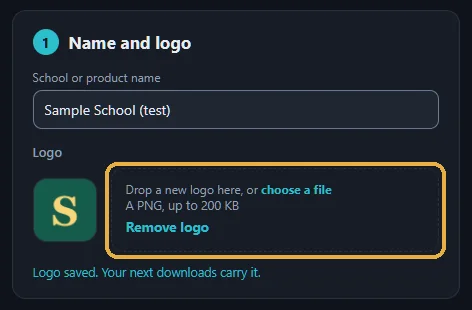
Under Name and logo, type your school's name.
Drop your logo on the box, or choose a file: a PNG, up to 200 KB. It saves at once, and the tab
says Logo saved. Your next downloads carry it.
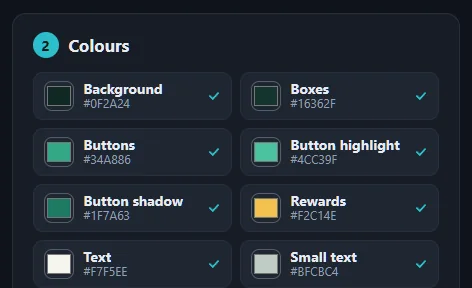
Under Colours, choose your colours. Each gets a tick, or a cross naming what is hard to read:
Colours that are hard to read can't be saved. The live preview shows what learners will see.
Choose Save.
Download your interactives again. Folders you downloaded before keep their old look.
When it works:
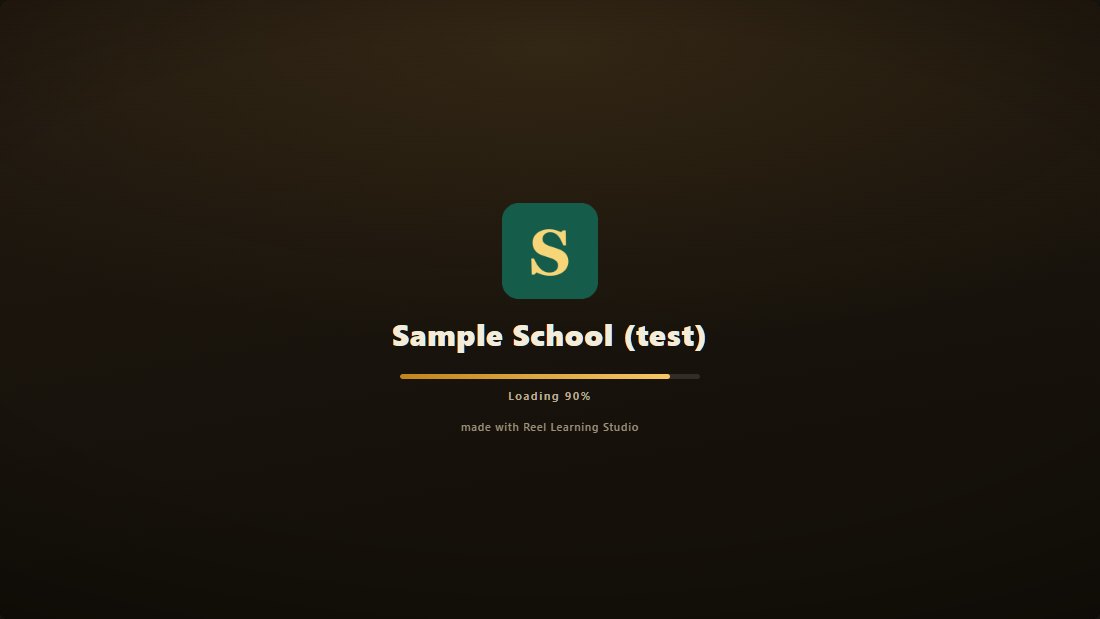
The next folder you download holds the logo in brand/logo.png, and the interactive opens with your name and logo
while it loads.
An interactive from the test school, loading with its name and logo.