Set up and download
Save your package settings once, then download each interactive as a zip file.
- Sign in to our studio.
- Open the Downloads tab.
- Under Your interactives, check the line says Licence active.
- Under Put an interactive on your website, choose Find it for me. Within 15
minutes, open one interactive's
index.htmlon your website (see Download and Copy it). The studio shows the folder it found and, once your page has played it, the page. Choose That's us beside each one that is yours. We approve the folder's address, usually within a working day; until then your interactives still play the interactive inside each folder. - Or open Or type the addresses. In Page address, paste a link to the page where learners play. The studio keeps only
the site part, for example
https://lms.school.example. For more than one site, put a comma between (10 at most). In Where will the files live?, type the folder, for examplehttps://games.school.example/interactives, and choose Save. - For Captions, choose Learner's choice or On from the start.
- If learners share computers, tick Shared computers: start fresh each visit.
- Untick any part of the game you want hidden: Score, Results pages, Stickers, High scores or Quick checks.
- Choose Save settings.
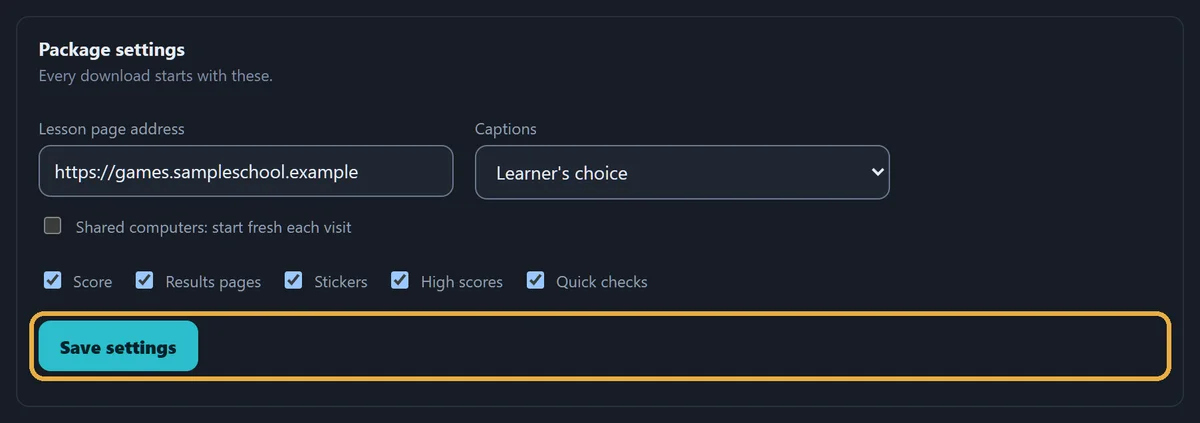
When it works:
The page says Saved. Your next downloads start with these.
If it does not work:
Couldn't save them — not an exact web address (https://host, no path): … names the wrong
address. Paste an address that starts with https://, and never *.
A folder you already downloaded keeps its old settings. To change them, download the interactive again, or edit its
package-config.js as its HOSTING.txt explains.
Download an interactive
- Under Your interactives, find the interactive.
- Choose Download.
When it works:
The page says Preparing the download..., then your browser saves a file named with the interactive ID and
version, for example states-of-matter-1.6.zip. We log each download: the interactive, the version, who, and
when.
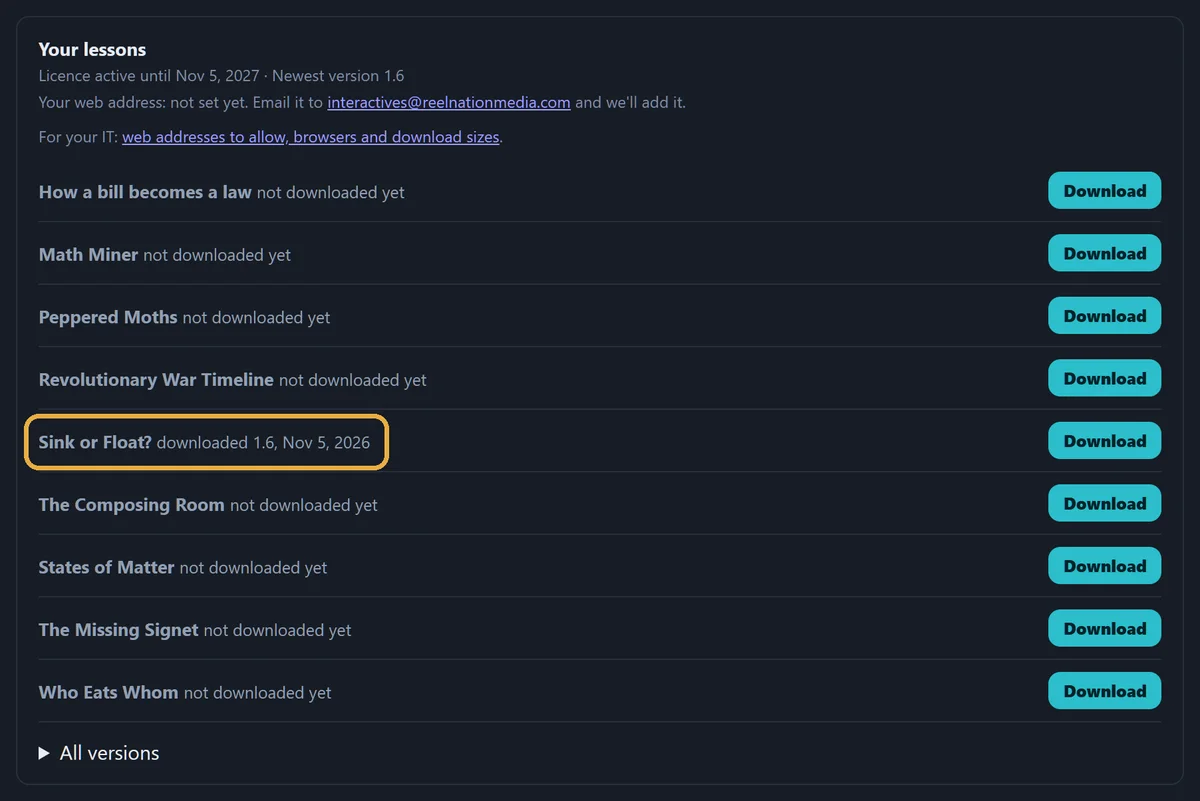
If it does not work:
- The interactive shows Not ready. We are updating it. Back soon. instead of a Download button, or the page says Couldn't download it — this lesson's package is being updated; try again in a few minutes. We are releasing a new version. Try again in a few minutes.
- Couldn't download it — this school's licence has ended. Ask us about your licence.
- Couldn't download it — this lesson is not in this school's licence. Ask us to add the interactive.