Quick setup
Three steps. Watch it once, then do it.
It is for a school that can put files on its own website. On Google Sites, Squarespace or Wix, or with no web host? You don't need it: share an interactive with a class link or with Google Classroom instead. There is nothing to host, and scores show in our gradebook. See Put an interactive link in your school system or Google Classroom.
-
Download and upload
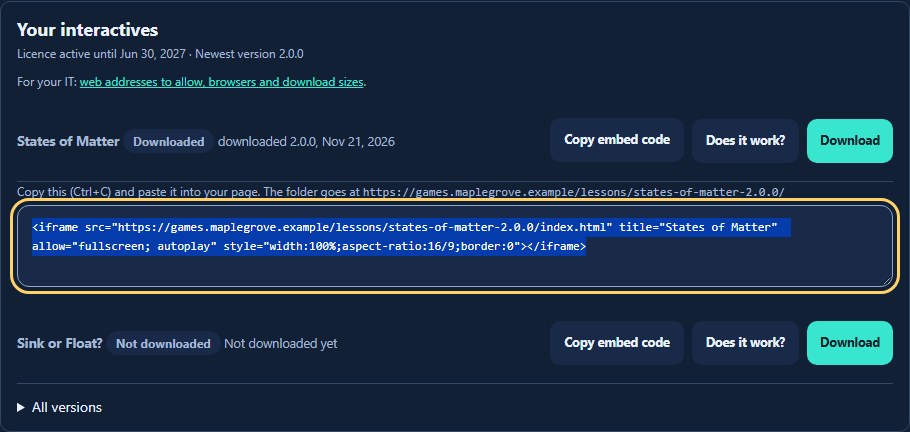
Sign in to our studio and open Downloads. Choose Download beside an interactive and unzip it into a folder of the same name. Upload that folder to your school's website.
You only see the interactives your licence covers. When we add one to your licence, it appears here by itself.
-
Open it once. We find it
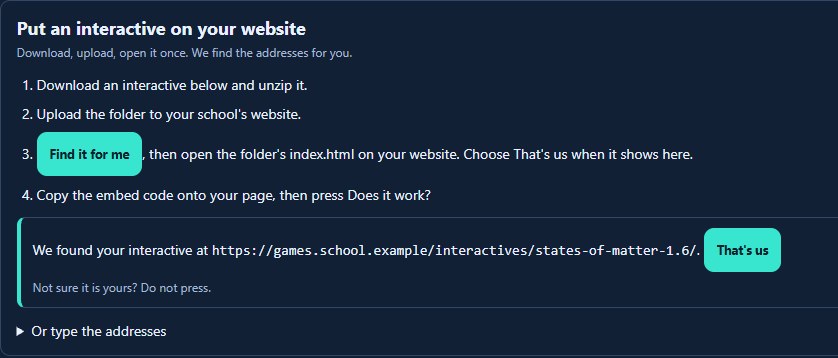
In Downloads, choose Find it for me. Then, within 15 minutes, open the folder's
index.htmlon your website, for examplehttps://games.school.example/interactives/states-of-matter-1.6/index.html.The studio shows We found your interactive at your folder. Choose That's us. You never type an address. Not sure it is yours? Do not press.
-
Paste it on your page
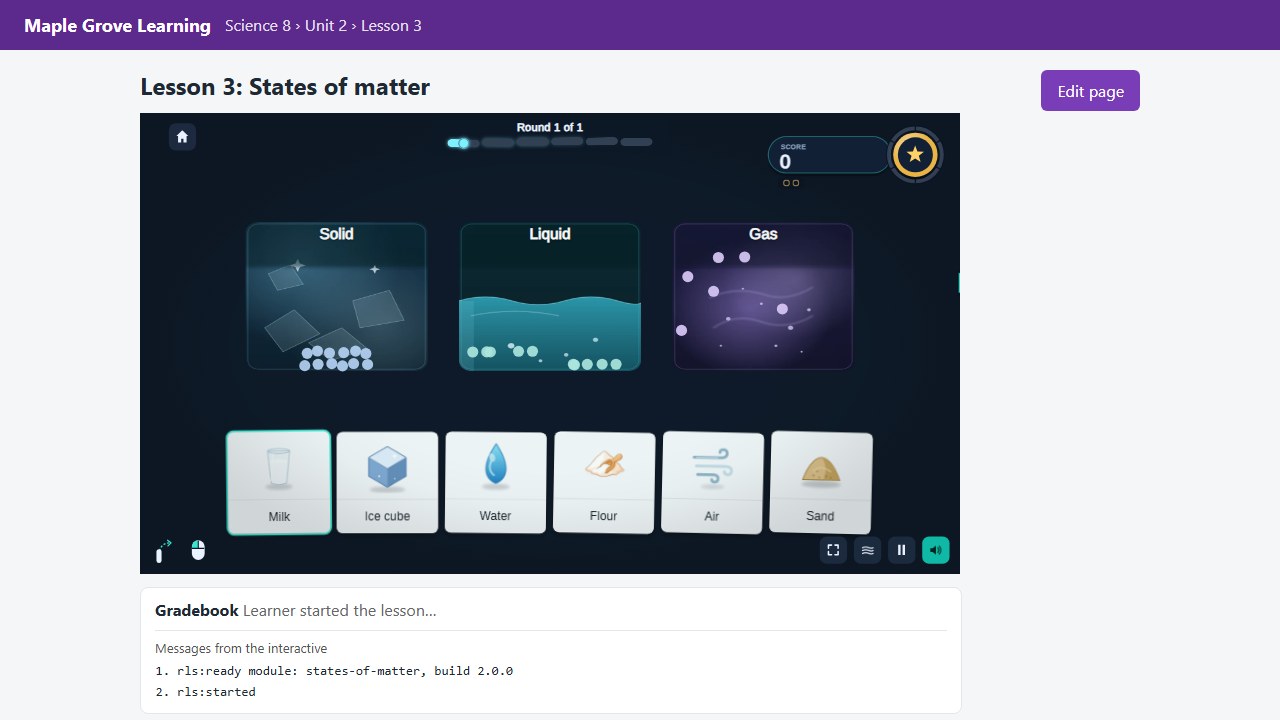
Choose Copy embed code beside the interactive and paste it into your page. Open the page once: the studio then asks Send its results there? Choose That's us.
To check, choose Does it work?. The interactive tells your page when it is ready, when a learner starts, and the result: see How results come back.
Rather type the addresses? In Downloads, open Or type the addresses, fill in Page address and Where will the files live?, then choose Save. It works the same.
We approve your web address, usually within a working day. Until then, the interactive plays as it came; after that, it also gets your teachers' edits from our studio.
A different website builder, more than one site, or something not working? The detailed guide covers each case.
Next: Before you start