Check the folder and the link
Check the files arrived intact, then test that your interactive page gets the game's messages.
- Open
check.htmlin the folder on your web server, for examplehttps://games.school.example/rls/states-of-matter-1.6/check.html.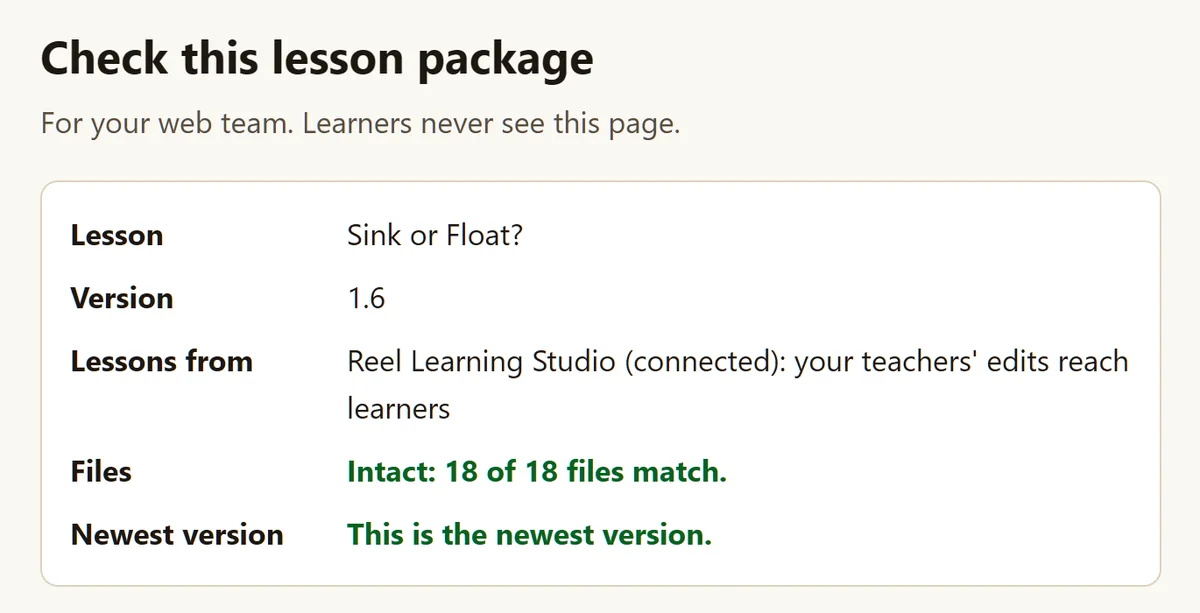
When it works:
The page, Check this interactive, shows the version, says Intact for the files, and shows whether a newer version is ready. Learners never see it.
If it does not work:
- Not intact, with a list of Missing or Changed files: a file was lost or changed on the way. Copy the folder again from the zip file.
- Files can be checked only over https. Open the page from its https address.
Test the link to your interactive page
This takes about five minutes. Run the test page on your interactive page's site: that is the page the game talks to.
- If your interactive page and the folder are on the same site, open
test-host.htmlin the folder. - If they are on different sites, copy
test-host.htmlandrls-messages.schema.jsonfrom the folder to your interactive page's site. - Open that copy with the game's address after
?src=, for example: https://lms.school.example/tools/test-host.html?src=https://games.school.example/rls/states-of-matter-1.6/index.html - Play the interactive once, to the end.

When it works:
The test page lists what the game sends, each line with a tick and the word valid read out to screen readers: Ready, Started, then a line such as Result: 85%, passed.
If it does not work:
- Nothing arrives, and after about 90 seconds the page says No message from the game yet. The test page's own address is missing from Page address. Add it, save, and download the interactive again.
- A line with a cross, read out as not valid: a message did not match the published format. Tell us, with the line.